
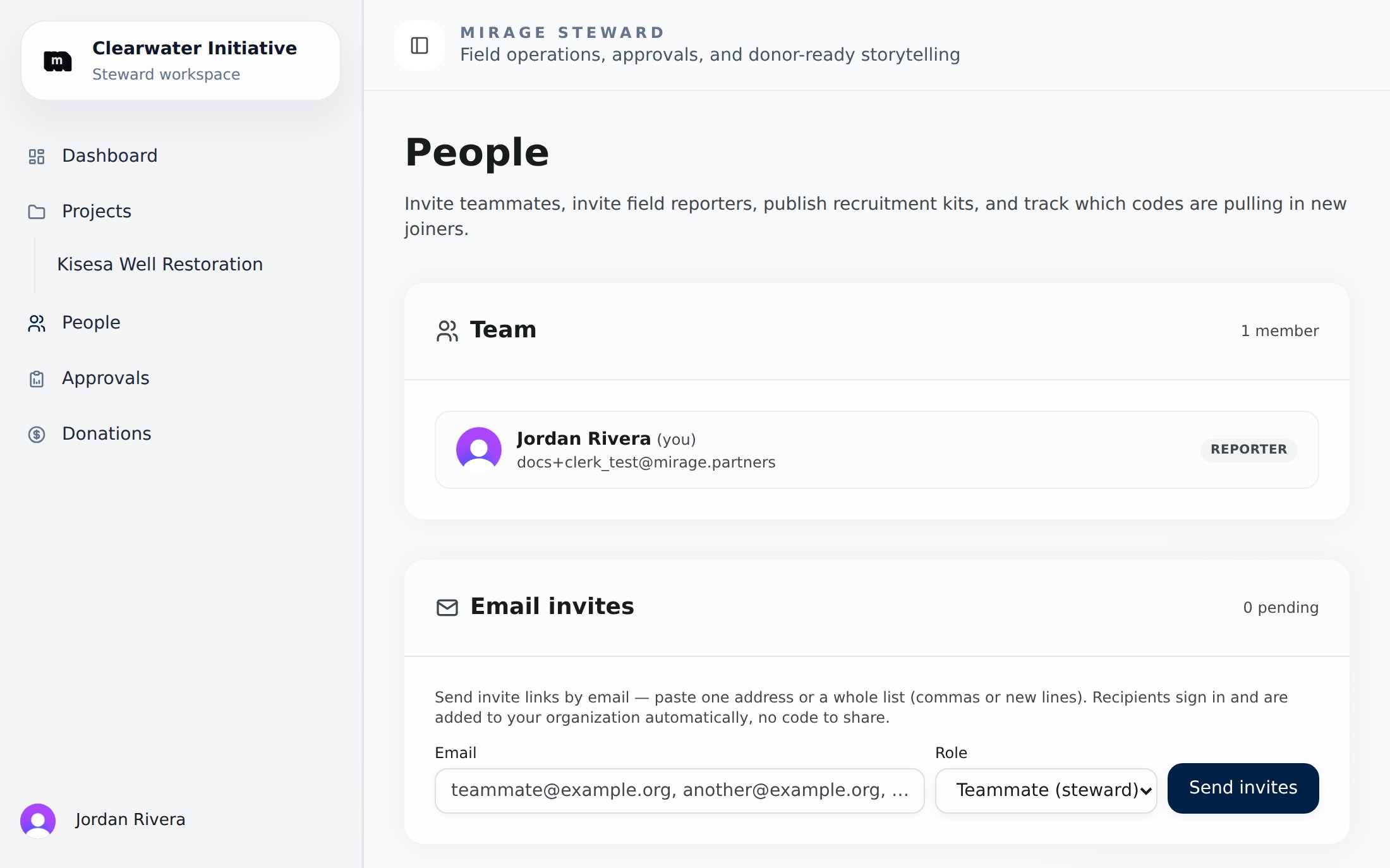
The People page: your team, email invites, and the reporter recruitment kit.
Invite teammates by email
1
Send the invitation
On the People page, enter one email address or paste a whole list of up to 50 (separated by commas, spaces, or new lines) and choose a role: steward (full dashboard access) or reporter.
2
They accept
Each invitee receives an email with a personal join link. If they don’t have a Mirage account yet, they sign up first and then land in your organization automatically.
3
Track it
Pending invitations are listed on the People page with a colored status: Invited (delivered), Email failed, or Copy link (shown when email isn’t configured: send the link yourself). You can copy the link, resend, or remove an invitation any time before it’s accepted. Invitations expire after 14 days.
Deploy field reporters with invite codes
Invite codes are the fastest way to get reporters into the field. One code can onboard a whole cohort, no email addresses needed.1
Generate a code
On the People page, generate an invite code. You get a 6-character code (like
PQXN8K) that’s easy to read aloud, text, or print.2
Configure it (optional)
Give the code a label so you remember what it’s for (“Q3 field cohort”), attach a project context, and set an expiration date or a maximum number of uses. You can deactivate a code at any moment: existing members keep their access; the code just stops working for new joins.
3
Share it
Reporters redeem the code at report.mirage.partners, either by entering it on the Join screen or by opening your code’s link directly. For in-person recruitment, print the QR card Mirage generates for each code and let reporters scan it.
4
Watch them arrive
The People page tracks how many times each code has been used. As soon as a reporter joins, your organization’s open reporting tasks appear on their dashboard.
Recruitment landing pages
Each invite code can optionally publish a recruitment landing page: a public page at a shareable URL that shows your organization, the tied project’s story, and the latest verified field evidence behind it. It’s easy to read it as a reporter-recruitment tool, but it deliberately serves two audiences at once:- Field reporters see a legitimate, branded invitation instead of a bare code, with the project they’d be reporting on and proof that the work is real.
- Interested donors who land on the same page can leave their name, email, and giving priorities. Those arrive in your organization as donor leads. See Managing donors.
Tying a code to a project
Attaching a project context to an invite code is optional:- Tie it to a project when you’re recruiting for a specific site or campaign (“Kisesa well monitors, Q3”) or whenever you publish a landing page, since the page draws its story and evidence from that project.
- Leave it untied for general-purpose codes: onboarding your standing field team, or reporters who will float across projects. They’ll see all of your organization’s open tasks either way.
Roles on the People page
The Team card lists everyone in your organization, stewards and reporters alike, with their role:- Steward: full administrative access to the dashboard.
- Reporter: sees and submits against your reporting tasks in the reporter app; no dashboard access.