
What happens when a report comes in
When a reporter submits and finalizes a report, Mirage automatically:- Analyzes the media: audio is transcribed and language-detected (with an English translation when the original is in another language); photos and video get AI-written summaries.
- Extracts metric contributions: for each of the project’s metrics, the AI proposes values it found in the answers and evidence, each with a confidence score and a link to the exact question or attachment it came from.
- Queues everything for review: contributions arrive as pending and count toward nothing until you act.
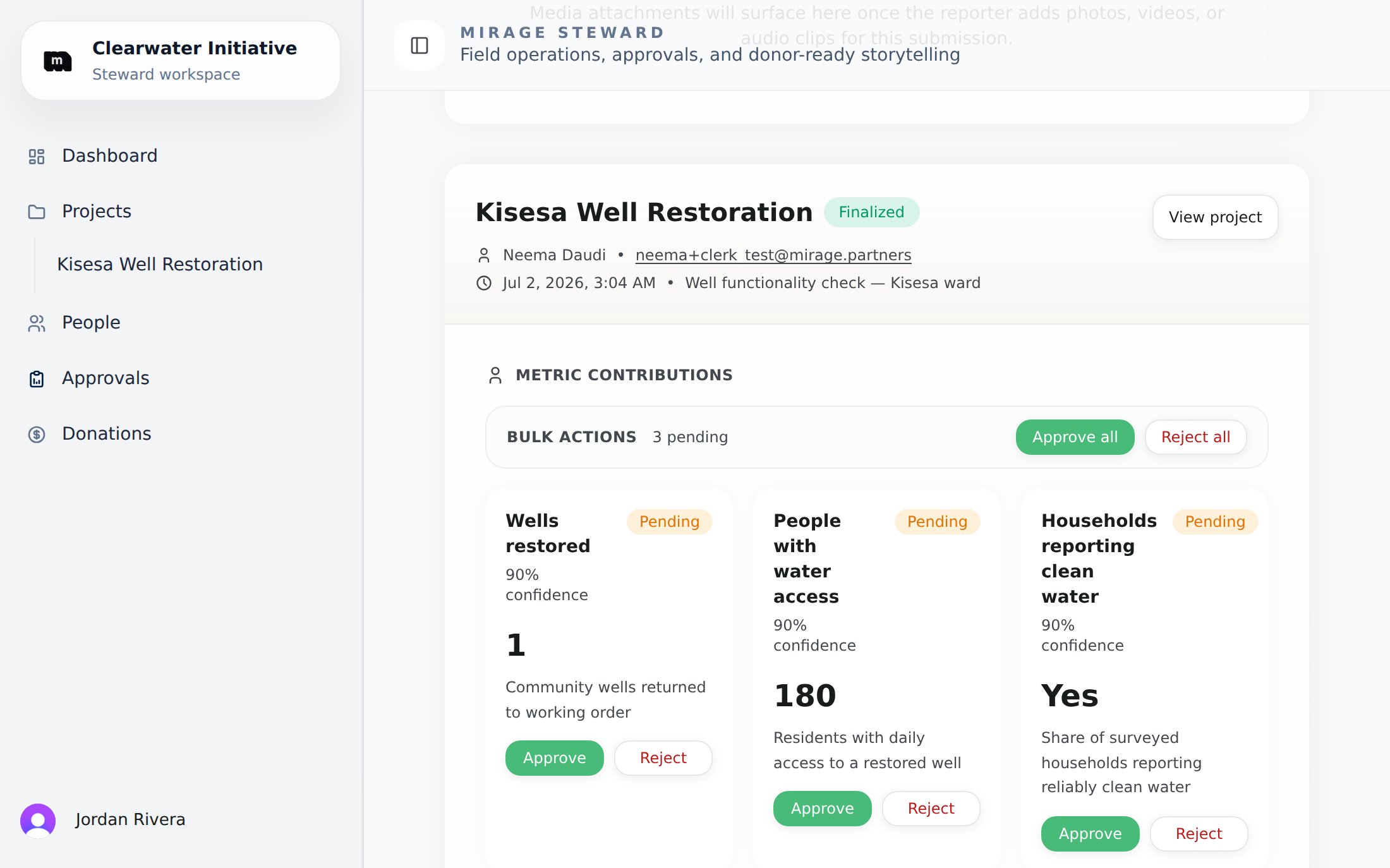
The reporting workbench: a finalized field report with its AI-extracted contributions awaiting your approval.
Review a report
1
Open the submission
From the Approvals page, open a finalized report. You’ll see the reporter’s answers, their attached photos, video, and audio (with transcriptions and AI summaries), and their free-form observation notes.
2
Evaluate the contributions
Each proposed metric contribution shows the metric, the extracted value, the AI’s confidence, and its source. Click through to the source to check the AI’s work against the actual evidence.
3
Approve or reject each one
- Approve: the value rolls up into the project’s aggregated metrics and becomes available to donor reports.
- Reject: the value is excluded. Use this for misreads, duplicates, or evidence that doesn’t hold up.
- Use Approve all / Reject all to act on every pending contribution for a report at once when they’re all clearly good (or clearly not).
What the reporter sees
Your review is the feedback loop for the field. In the reporter app, each submission shows its status:
Consistently reviewing promptly keeps reporters engaged: they can see their work landing.
Consent flags
Photos and video arrive with the consent metadata reporters captured at upload: whether face permission was obtained and whether the media is internal only. You don’t need to police this manually at review time (donor-facing pages exclude non-consented and internal-only media automatically), but the flags are visible during review so you know what will and won’t be publicly usable.Photo privacy and safety
Mirage applies several protections to field photos automatically. You can see and adjust them from the photo safety panel on each attachment during review.- Minors are blurred automatically. When Mirage detects a minor’s face, public and donor pages serve a blurred copy. The photo stays hidden publicly until that copy is ready.
- Blur all faces extends this to every face in the photo, not just minors. Use it for hostile environments or at-risk adults. While the fully blurred copy is being produced, the photo is withheld from public pages.
- Location metadata is always removed. Every photo Mirage serves has its GPS and EXIF metadata stripped, whether or not any face is blurred. A photo taken at a sensitive site never reveals its coordinates on a donor or public page. The original file stays in secure storage for verification.