
Start a report
1
Open a task
From your dashboard, tap a task to see its details: the instructions, the reward, the evidence needed (photo, video, or audio), the questions you’ll answer, and a Get directions button to the site.
2
Tap Start Reporting
A draft report opens. If you’ve already started one for this task, you’ll continue where you left off.
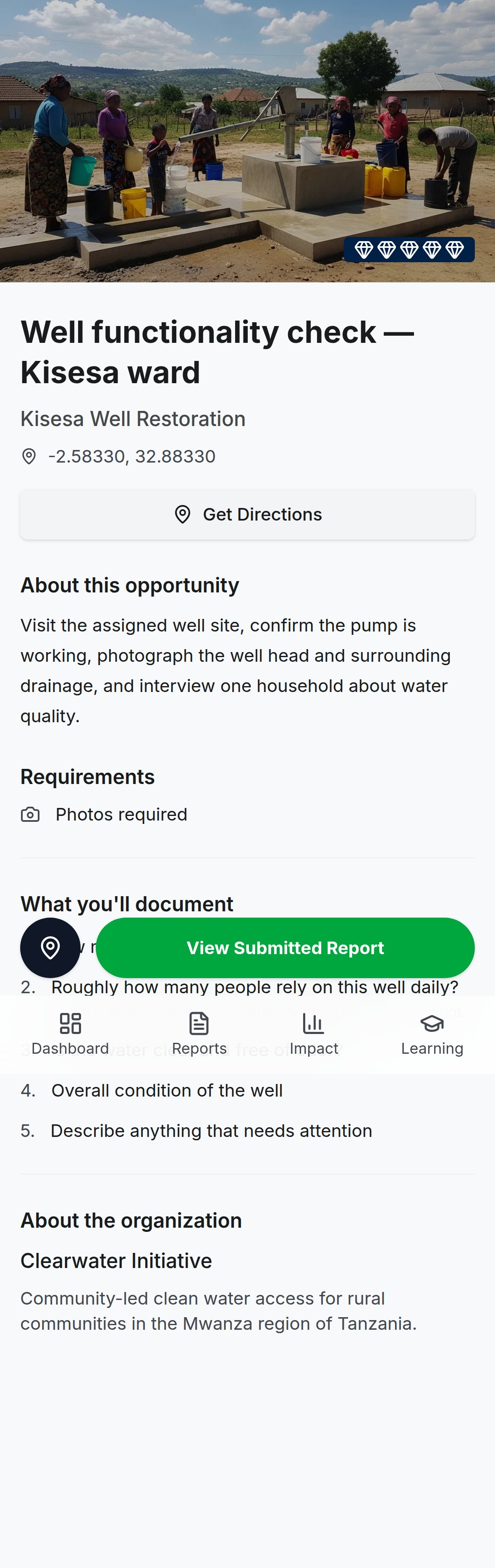
A task's detail page: requirements, questions, and directions to the site.
Answer the questions
Questions come one at a time with a progress bar. Your answers save automatically as you type. If you’re interrupted, close the app, or lose signal, your draft is safe and waiting. You’ll see different answer types: short and long text, numbers, yes/no, a 5-point agreement scale, and multiple choice. Required questions must be answered before you can submit.Capture evidence
The Evidence from the Field section is where your report earns its credibility:- Photos: take a new one with Open Camera or attach from your library. Photos are compressed on your phone before upload, so they work on slow connections.
- Video: captured or attached the same way.
- Audio: tap Record Audio to capture voices, testimony, or ambient context in any language. Mirage automatically transcribes it and translates it to English.
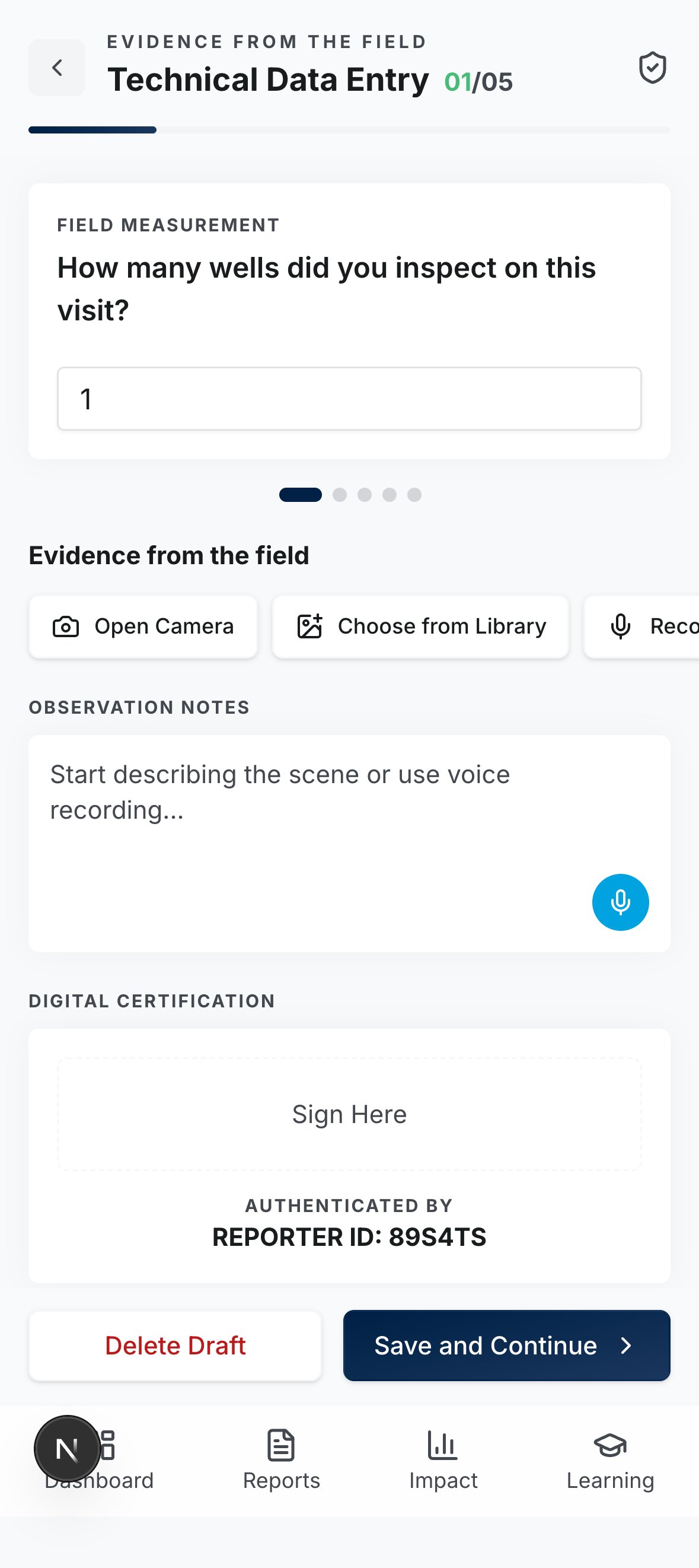
The report editor: one question at a time, with evidence capture alongside.
Consent matters
When you add a photo or video of people, the app asks two questions:- Face permission obtained? Did the people pictured agree to appear?
- Internal use only? Should this stay out of public donor pages?
Add observations and submit
Use the observation notes box for anything the questions didn’t ask (context, surprises, concerns); it grows as you type. There’s no signature to draw: completing the report digitally signs and encrypts it under your reporter ID automatically. Then tap Complete Report. You’ll get a confirmation screen with a confirmation ID (likeMIR-483-2026) you can copy or download as a receipt. Your evidence is encrypted and processing begins immediately; extracted metrics typically appear on the organization’s side within about 15 minutes.
After you submit
Track every report on your Reports page: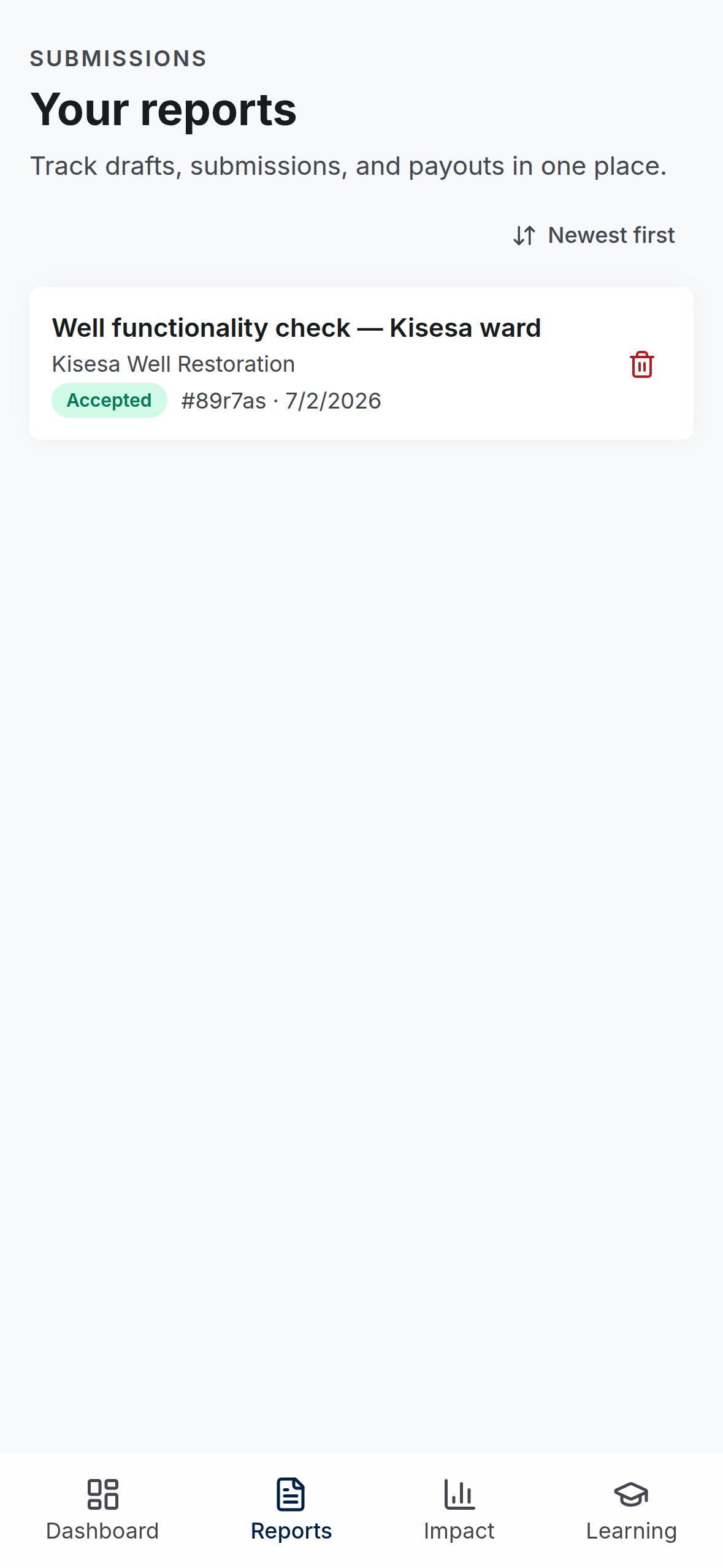
Your reports page: every submission and its review status.